
What is WuPlay?
WuPlay is a Stremio-compatible streaming client that works with all Stremio add-ons — including AIOStreams and Core Builds. Available on Android TV, Google TV, and Fire Stick. Supports Chromecast casting, Trakt integration, and configurable layouts. Current version: v0.7.3-beta Use WuPlay when:- You want a dedicated streaming app on Android TV / Fire Stick / Chromecast
- You prefer a different UI from Stremio with built-in genre browsing and binge groups
- You need Chromecast casting support
Quick Import
Already have a TorBox account and a configured AIOStreams template? Four steps:1
Copy your manifest URL
Open your AIOStreams instance → your manifest URL is shown at the top of the config page. Copy it.
2
Find your Profile Key
In WuPlay, go to Settings → Configuration. Your Profile Key is displayed at the top (e.g.
a1b2c3). Note it down.3
Open the WuPlay configurator
Scan the QR code on the Configuration screen to open the configurator pre-linked to your device — or go to config.wuplay.app/configure manually and enter your Profile Key.
4
Add the manifest as an add-on
In the configurator under Add-ons, paste your AIOStreams manifest URL and save. The add-on syncs to your WuPlay app automatically.
Full Beginner Walkthrough
1. Install WuPlay
Download WuPlay using downloader code5781040 on your device, or get it from:
- Android TV / Google TV / Fire Stick → sideload via WuPlay releases
2. Get a TorBox subscription
Sign up at torbox.app. You need at least a Standard plan. Go to Dashboard → API Keys and copy your API key.3. Choose and import a template
- Go to the Template Directory
- Click Import on ElfHosted or Import on Fortheweak next to your chosen template
- AIOStreams opens with the template pre-loaded
4. Configure AIOStreams
In AIOStreams:- Go to Services → toggle TorBox ON → paste your API key
- (Optional) Add a TMDB Access Token from themoviedb.org/settings/api
- Click Save
5. Copy your manifest URL
After saving, AIOStreams shows your manifest URL. Copy it. It looks like:6. Find your WuPlay Profile Key
Open WuPlay on your device and go to Settings → Configuration. Your Profile Key is shown at the top of the screen. A QR code is also displayed — scan it with your phone to open the WuPlay configurator directly, pre-linked to your device.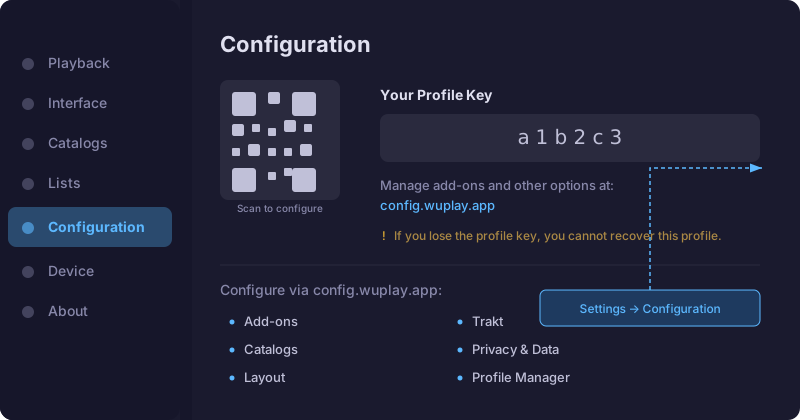
7. Add the add-on via WuPlay configurator
- Scan the QR code shown on the Configuration screen to open the configurator pre-linked to your device — or go to config.wuplay.app/configure manually and enter your Profile Key
- Navigate to Add-ons
- Paste your AIOStreams manifest URL
- Save — the add-on syncs to your WuPlay app automatically
8. Start streaming
Go back to WuPlay on your device. Browse movies and shows → select a title → pick a stream. The Core Builds formatter shows resolution, codec, audio, and file size for each stream. To cast, use the Chromecast icon in the player controls.WuPlay vs Stremio
WuPlay Links
- GitHub releases → github.com/wuplayapp/wuplay-releases
- Downloader code →
5781040 - Discord → discord.gg/PvZjHVGtE9
- Ko-fi → ko-fi.com/wuplaydev
Troubleshooting
- No streams appearing → Make sure your manifest URL is correct and your TorBox API key is active in AIOStreams
- Add-on not syncing → Verify your Profile Key is correct in the configurator at config.wuplay.app
- Cast not working → Ensure your Chromecast and WuPlay device are on the same Wi-Fi network
- Streams buffer or stall → Try a Speed or Flash template for faster cached results
- FLAC audio issues → WuPlay v0.7.3+ automatically transcodes FLAC tracks (ExoPlayer limitation)
- “No compatible streams” on resume → Fixed in v0.7.3 — update WuPlay if you see this